
Your whole day and home
The Space feed
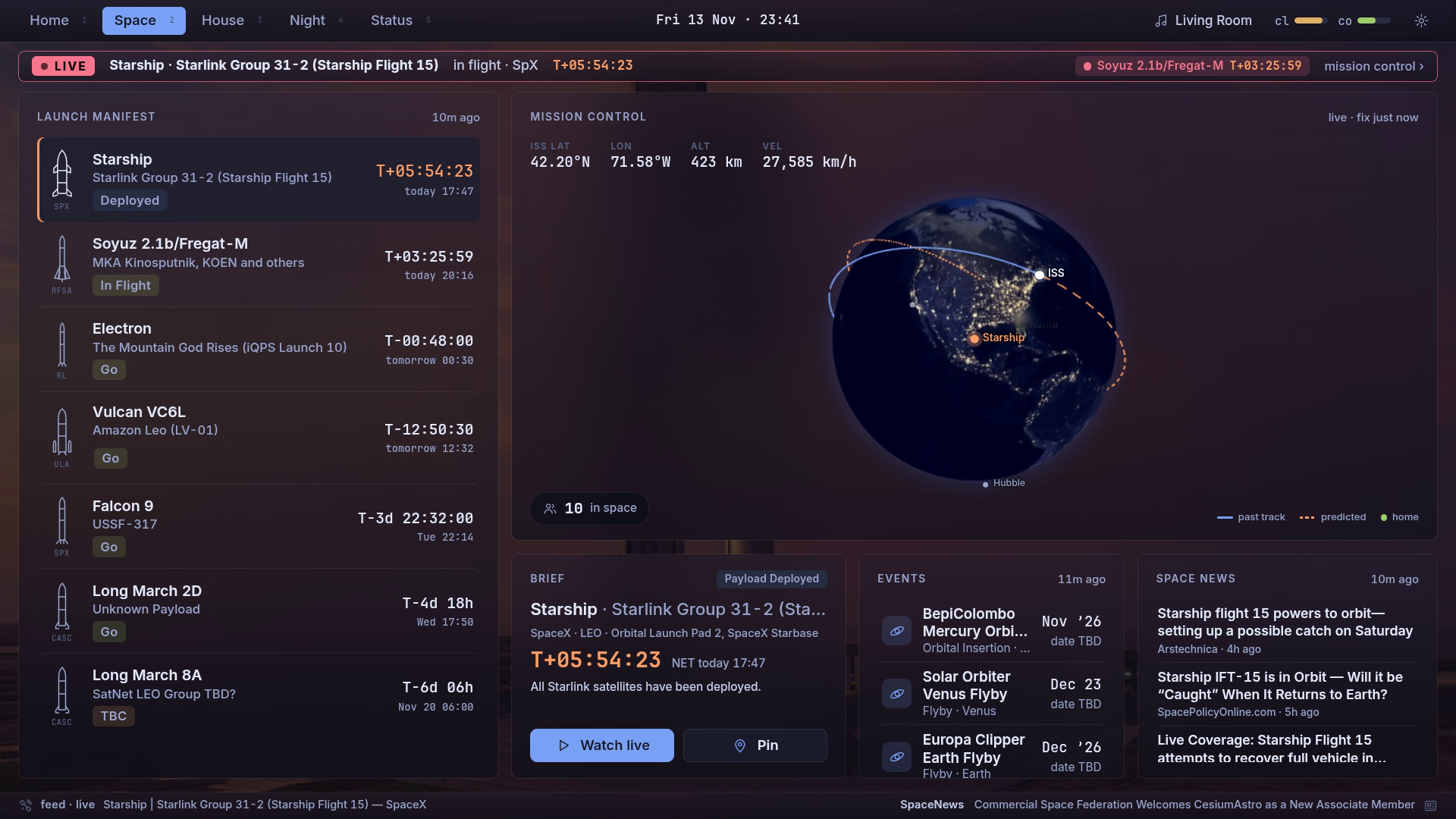
Every launch on a live globe, from public launch data. It’s on by default and needs no setup; turn the area off per screen if you don’t want it.
OptionalLive
Launches and the globe
- Open Space and pick a launch from the manifest. The globe flies to its pad.
- The brief below shows the vehicle, pad and T-minus, and “Visible from home: look …” when that can be worked out from your location.
- Choose Watch. Before the stream is live, Flight Director shows the count, the pad and the published timeline.
- Choose Track to keep a mission selected on every screen. Settings › Stop tracking lets it go.
Status comes from the launch itself. A late launch time isn’t proof that a rocket is flying.
The ISS and LOOK UP
The globe shows the station’s past and predicted track, launch pads and home, with a flat map if the globe can’t run. The pass box says “Next pass … · max 54° · 11 min”. During a visible pass, a LOOK UP card points to the station on Ambient and the night controls.
Flight Director
For the first nine minutes after a confirmed liftoff it shows altitude, speed and pitch labelled “Estimated · typical ascent, not telemetry”. Pad weather appears only when a real forecast covers the launch time.