

Your whole day and home
The dashboard and your day
Home shows the day at a glance, in numbers rather than adjectives. Every tile shows real data, or says plainly what it’s waiting for.
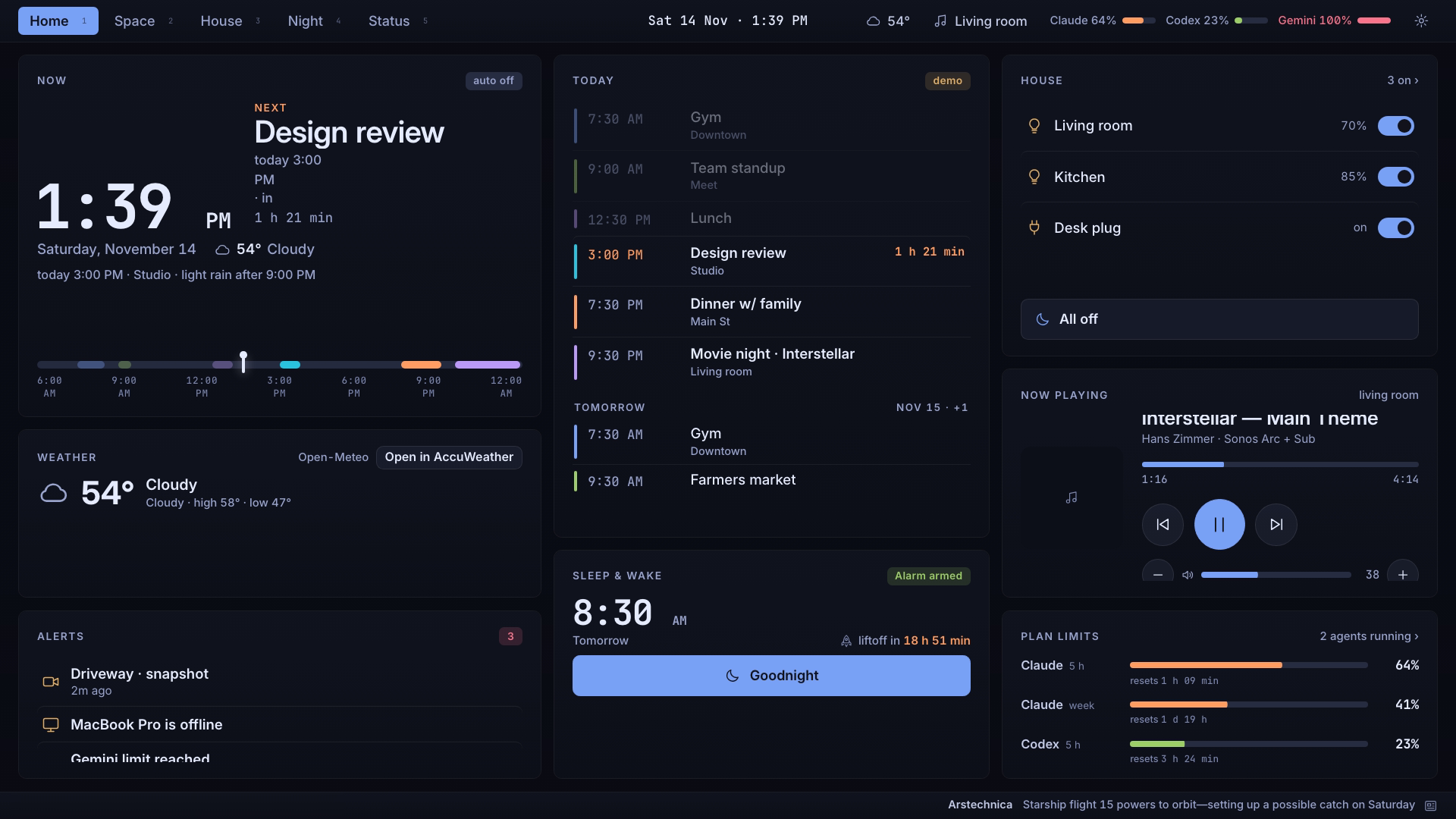
The Home tiles
| Tile | What it shows |
|---|---|
| Clock and next up | The time, the date and the next thing: an event, the wake time or a launch with its T-minus. Always first. |
| Weather | Now, a one-line summary and rain soon. Tap it on the panel for the briefing. |
| Today | Your calendar. After 8 PM, or once the last event has ended, it leads with Tomorrow. |
| Due next | Coursework deadlines, when connected. |
| Sleep & Wake | Tomorrow’s wake time, the alarm and Goodnight. |
| Scenes & lights | Scenes and how many lights are on. |
| Now playing | Only while something plays. |
| Alerts | Only when there are any: weather alerts and house notices. |
| Plan limits | How much of your AI plans is left, when connected. |
A LIVE banner appears across the top while a launch is in flight, with a Watch button.
Arrange Home
- Press and hold a Home tile, or press Menu on a TV remote.
- Show or hide each tile and move it up or down. The clock always stays first.
- Choose Done. Reset puts the default order back.
Each screen keeps its own arrangement. On iPhone, iPad and Mac it’s in Settings › Screens › Home tiles; Apple TV keeps a fixed layout.
Your calendar
On the wall panel and TVs, Today comes from the calendars in your Home Assistant. The Apple apps read the calendar on the device (read-only, the next 7 days).
Planning your day
Flight Plan, an AI-made plan for the day from your calendar and routines, is a Concept.